|
Clicking the TOOLS section of the knowledge article will display an option to "Highlight Matches". See example below (not all of these options may be available to you, depending on the system administrator settings).
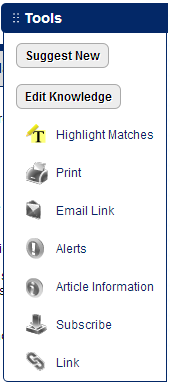 When you click "Highlight Matches" it will highlight the word(s) in the article that match your search text. When you click "Highlight Matches" it will highlight the word(s) in the article that match your search text.
Stop words like "a, an, or, the, why, how, I, and, etc." are not highlighted.
The remaining words are highlighted if they are found in the knowledge item.
Words in the article are highlighted in yellow.
The system identifies words that have been set up as synonyms, so a word could be highlighted that is not an exact match with your search term, but rather a synonym.
The system also will highlight a form of the word, so that a search on account will also highlight accounts, accounted, accounting, etc. (unless you specify in your Advanced Search that you want an exact phrase match only).
Don't see your words highlighted?
Some words in an article are included in the search engine index, but not visible when viewing the article.
|